Switching to GymPoint? Start with a Clear Plan.
Review your exports, confirm supported records, and map and verify your import before going live. Migration timing depends on data quality, scope, and payment arrangements.
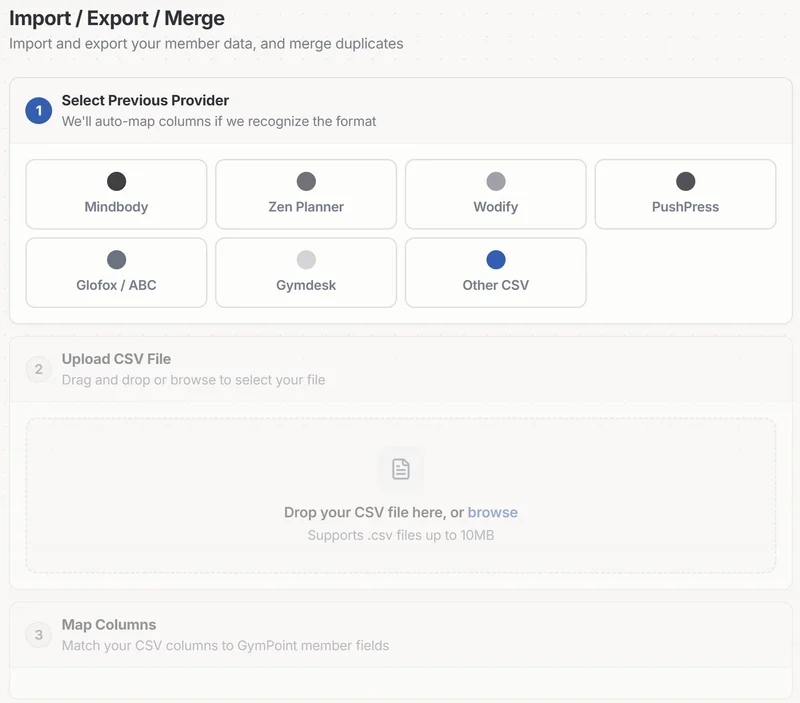
The CSV import is in Settings > Members > Import / Export. It brings in member records with contact details, status (active, frozen, canceled, or lead), and membership plan assignment. Get the migration checklist or Start Free.
Get the migration checklist
Tell us what you use today. You get the checklist for exporting from that platform and reviewing your import before cutover, and we follow up by email if you want help.
CSV import sources include
CSV support depends on available fields and formats. Review your import scope before planning a cutover.
Coming from GymDesk? Step-by-step: how to export your data from GymDesk.
Confirm What Can Move.
The records below are a scope-review checklist, not a guarantee that every field transfers. GymDesk has a guided migration path; other CSV imports depend on mapping and verification.
Member profiles
Review available contact fields and match member identities.
Membership plans
Confirm plan mapping and review reconstructed memberships.
Billing history
Supported payment history imports are historical records, not new financial transactions.
Payment methods
Card-token transfer depends on processor cooperation and compatibility. Members may need to re-enroll.
Class schedules
Confirm which schedules and bookings can be imported or need to be recreated.
Attendance history
Check available attendance exports and reconcile imported totals.
Waivers & documents
Review supported document exports and preserve original copies.
Lead pipeline data
Review prospect fields separately; some history may need to remain in your archive.
The 5-Step Transition
Agree on scope, then test and verify the data before switching your live operations.
Export
Download your data from your current provider's dashboard.
Upload
Drag and drop your files into our secure import portal.
Review & Confirm
Review the column mapping and verify that the source data matches.
Go Live
Reconcile member counts, plans, and balances before your agreed cutover.
Re-enroll cards
Confirm token portability with processors or arrange secure member re-enrollment.
Tools and Checks for Your Transfer.
- check
Dedicated migration guides
Step-by-step instructions specifically for your old platform.
- check
Column mapping review
Confirm how supported source fields map to GymPoint before importing.
- check
Duplicate review
Review possible duplicates before confirming your import.
- check
Preview and verify
Review a supported import preview and verify results before the full cutover.
- check
Membership status review
Check membership statuses against your source records before cutover.
Get the migration checklist
Tell us what you use today. You get the checklist for exporting from that platform and reviewing your import before cutover, and we follow up by email if you want help.
Plan Your Next Step.
Bring a sample export and your billing requirements. Review supported data, payment portability, and the steps needed for your move.