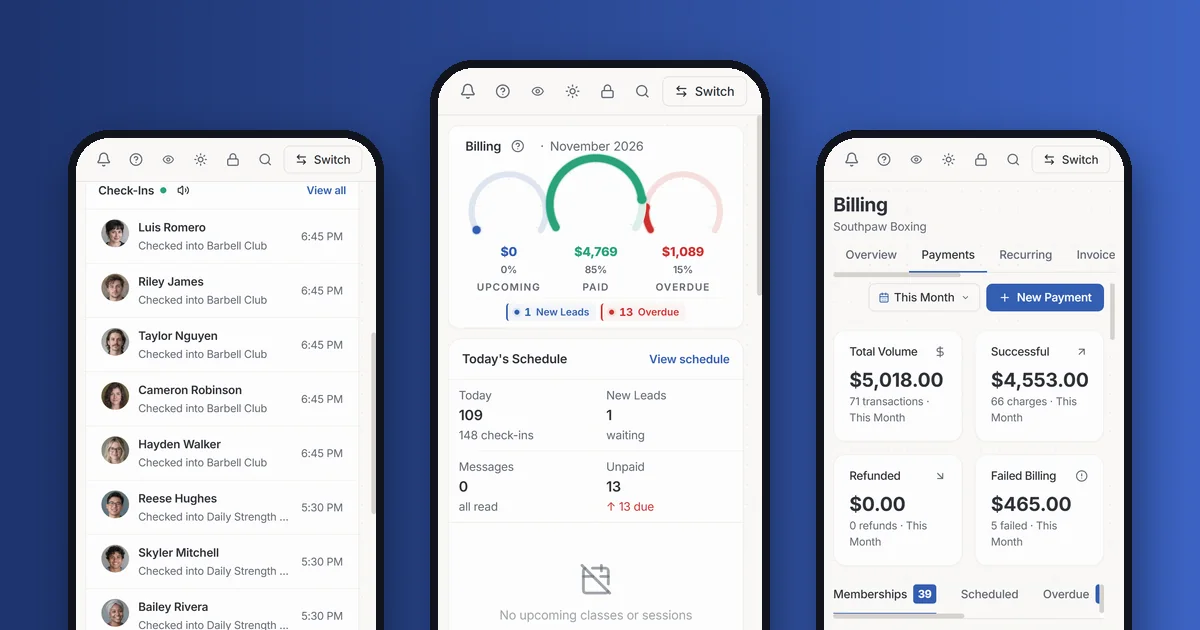
Run Your Gym From Your Phone: GymPoint Now Fits the Screen in Your Pocket
You are not always at the gym. You are at a kid's game, at the supply store, or on the couch at 9 PM, and the only screen you have is your phone.
In our latest round of updates we went through GymPoint screen by screen and reworked it for that moment. Home, Members, Schedule, Bookings, Billing, POS, Marketing, Reports and Front Desk are now laid out for a narrow screen, with a bottom navigation bar and larger tap targets.
There is nothing to install and nothing to turn on. Sign in to GymPoint in your phone's browser and it is the same account, the same data, and the same permissions your staff already have.
Here is what that looks like in three everyday situations.
Check on the gym without calling the front desk
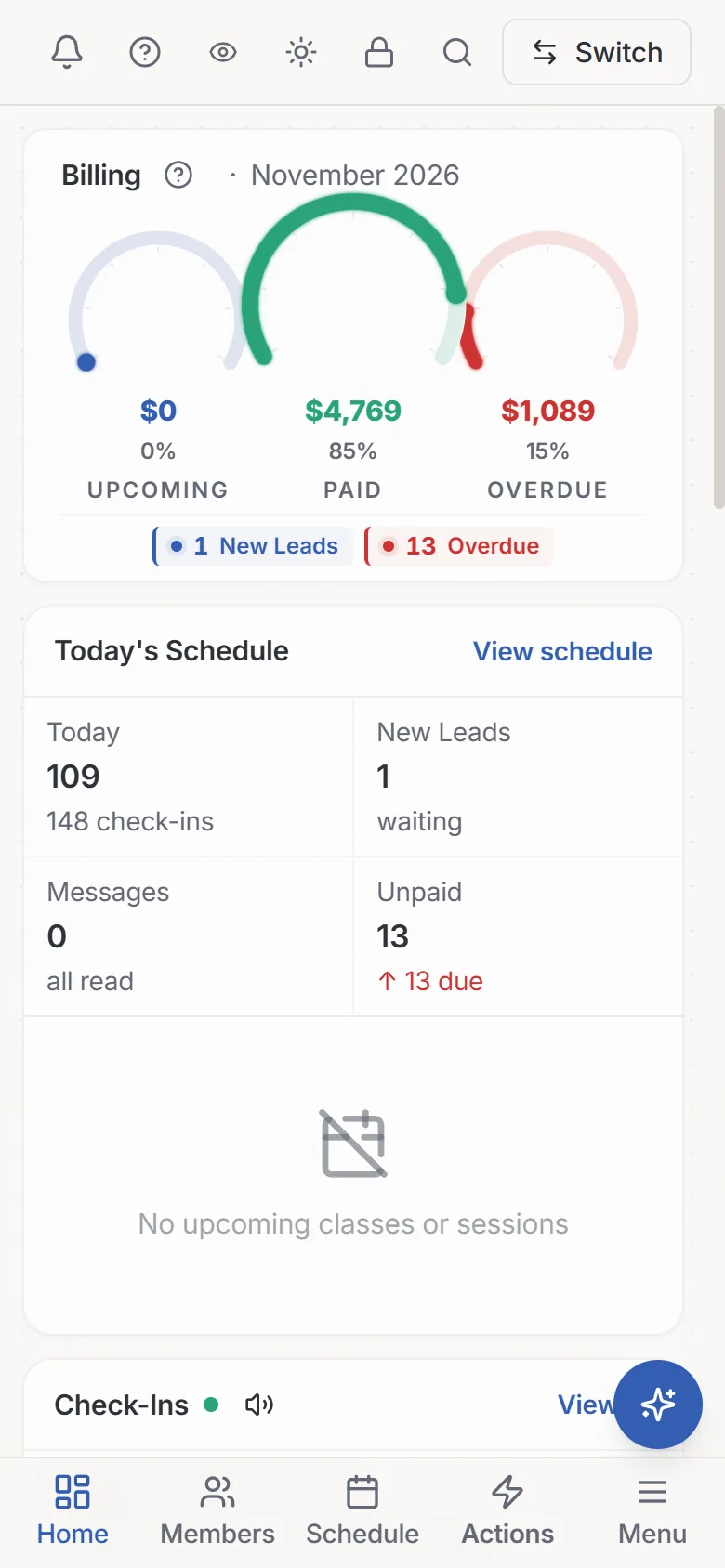
The home screen answers the questions you would otherwise text your manager about. The billing rings show what is upcoming, what has been paid this month, and what is overdue. Below them: how many people have checked in today, how many new leads are waiting, and how many invoices are unpaid.
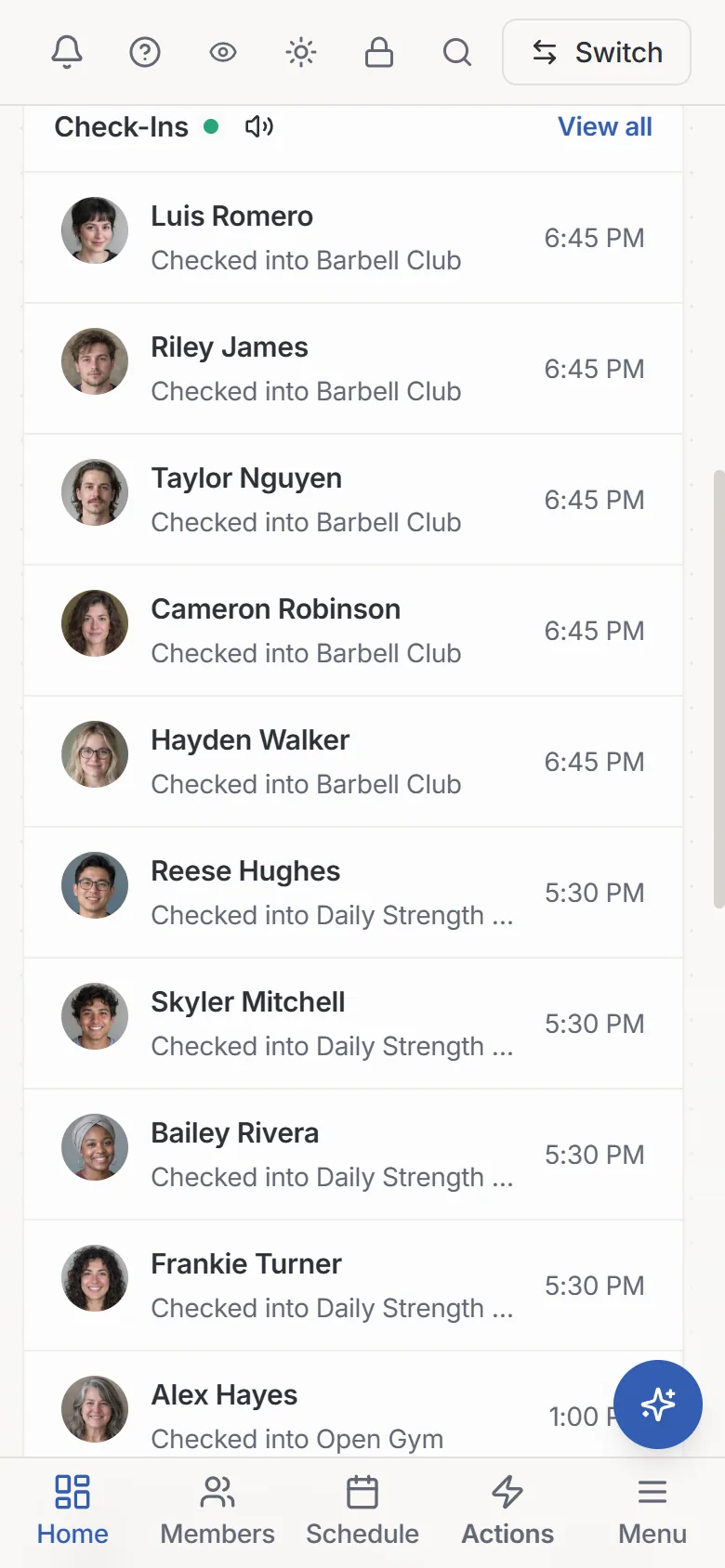
Scroll down and the check-in feed shows who walked in and which class they checked into, newest first. It refreshes on its own while the page is open, so you can watch the evening rush from wherever you are.
See who is interested and follow up
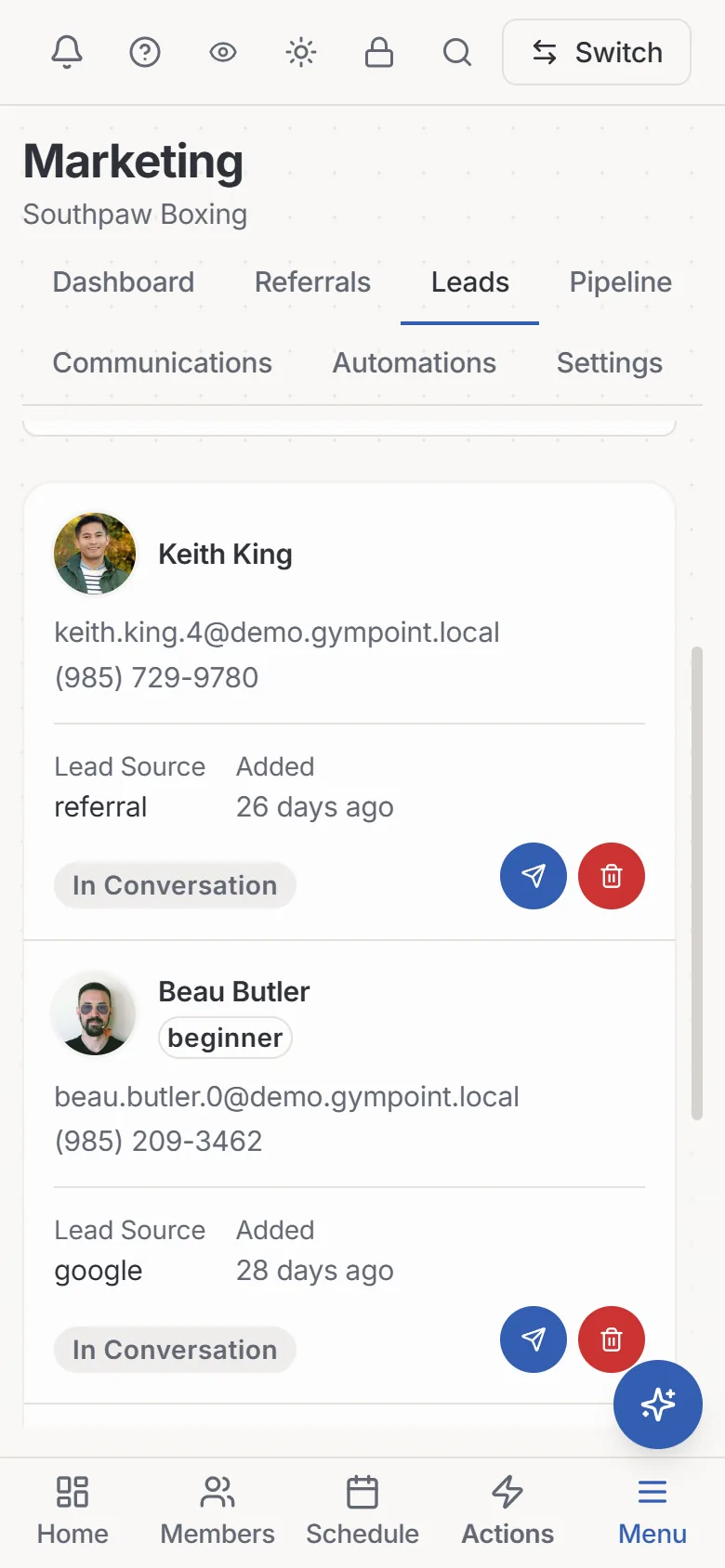
A lead who filled out your form an hour ago is worth more than one you call back on Monday. Under Marketing > Leads, each lead is a card with their name, phone, email, where they came from, and how long ago they were added. Open a lead to call them with one tap. When they are ready, send the signup invite straight from the card.
Billing ran and a few cards did not go through
Monthly billing finishes, most charges succeed, and a handful are declined.
Open Billing > Payments and the summary shows it at a glance: total volume, successful charges, refunds, and Failed Billing with the count and the dollar amount.
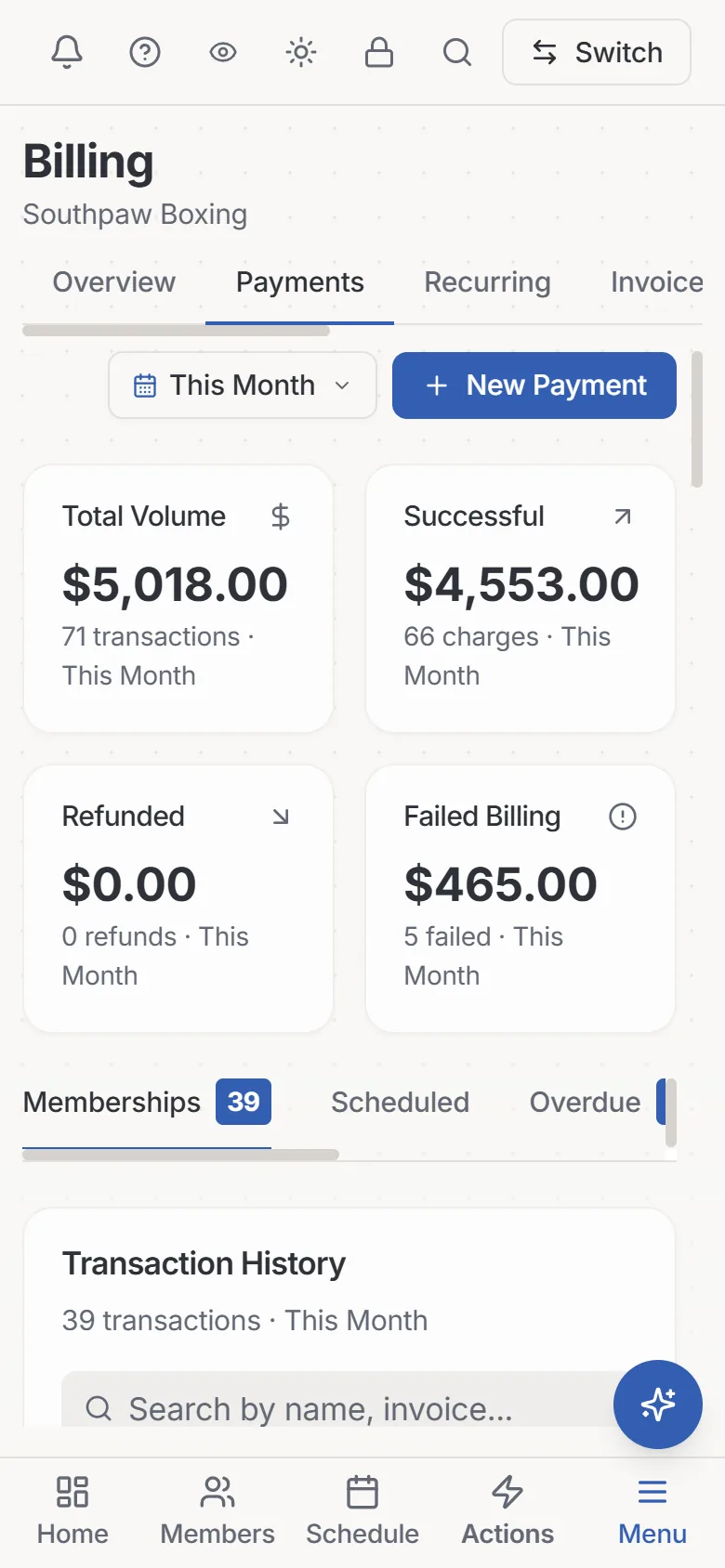
By default, GymPoint retries declined cards on a schedule and emails the member each time. When you would rather not wait, tap the Overdue tab to see who is past due, tap a past-due row to open the invoice, and charge the card on file again. If the member has texted you a new card, update it on their profile first and then charge. The failed payments guide covers the retry schedule and what members are told.
Getting around with one hand
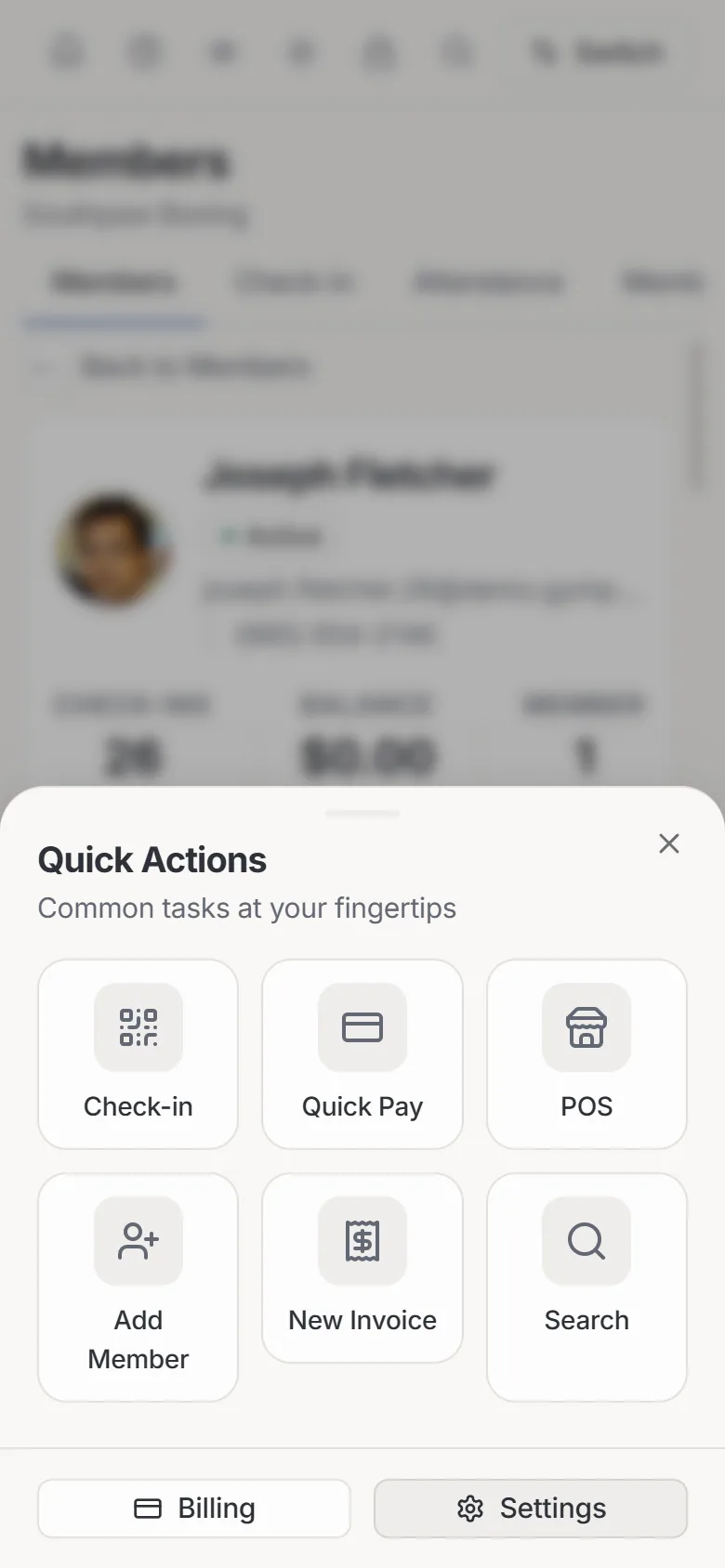
A bar at the bottom of the screen holds Home, Members, Schedule, Actions and Menu. Actions opens the tasks you reach for most: check a member in, take a quick payment, open the POS, add a member, create an invoice, or search.
If you just signed up and your phone is the first place you opened GymPoint, the Get Started checklist sits near the top of the Menu until you finish or dismiss it. It lists each setup step, from your gym profile and first membership plan to your schedule and connecting payments, and keeps track of what is left.
Where a bigger screen still wins
GymPoint is a full gym management system, and it is at its best on a tablet or desktop at the front desk, where the kiosk, the POS and a full week of schedule have room to spread out. The deeper Settings pages have not had the same phone pass yet, so heavy setup work is still easier on a larger screen.
The phone is for everything in between: the quick look, the follow-up call, the card that needs another try.
We test at phone screen widths from 375 to 430 pixels. If a screen looks off on yours, send a note through the contact form and a person will answer.